NFC CARD SETUP GUIDE
How to set up an NFC card
Set up a writable NFC card for Google reviews yourself. Thirteen clear steps take you from your business on Maps to the first test tap.
Start setup

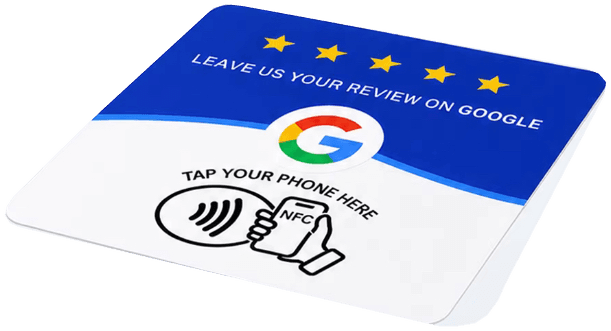

BEFORE YOU BEGIN
What you need
- NFC phoneMust support writing NFC tags.
- Google MapsYour business or a location you manage.
- ProductmateGenerator for a direct review link.
- NFC ToolsApp for writing the card; internet required.
- NFC cardCompatible and writable.
This process is for customer-configurable writable cards. Some supplied cards are already programmed or locked. If you are unsure whether your card can be rewritten, contact us first.
As the owner, you use NFC Tools only to write the card. Write the direct review link generated from the original Maps link.
NFC CARD SETUP GUIDE
Start setup
A regular Maps sharing link may not open the review form. Generate a dedicated review link and check the correct location. Write the generated review link to the card, not the original Maps link.
- 01
Find your business
Open the correct location for a business you own or manage in Google Maps.
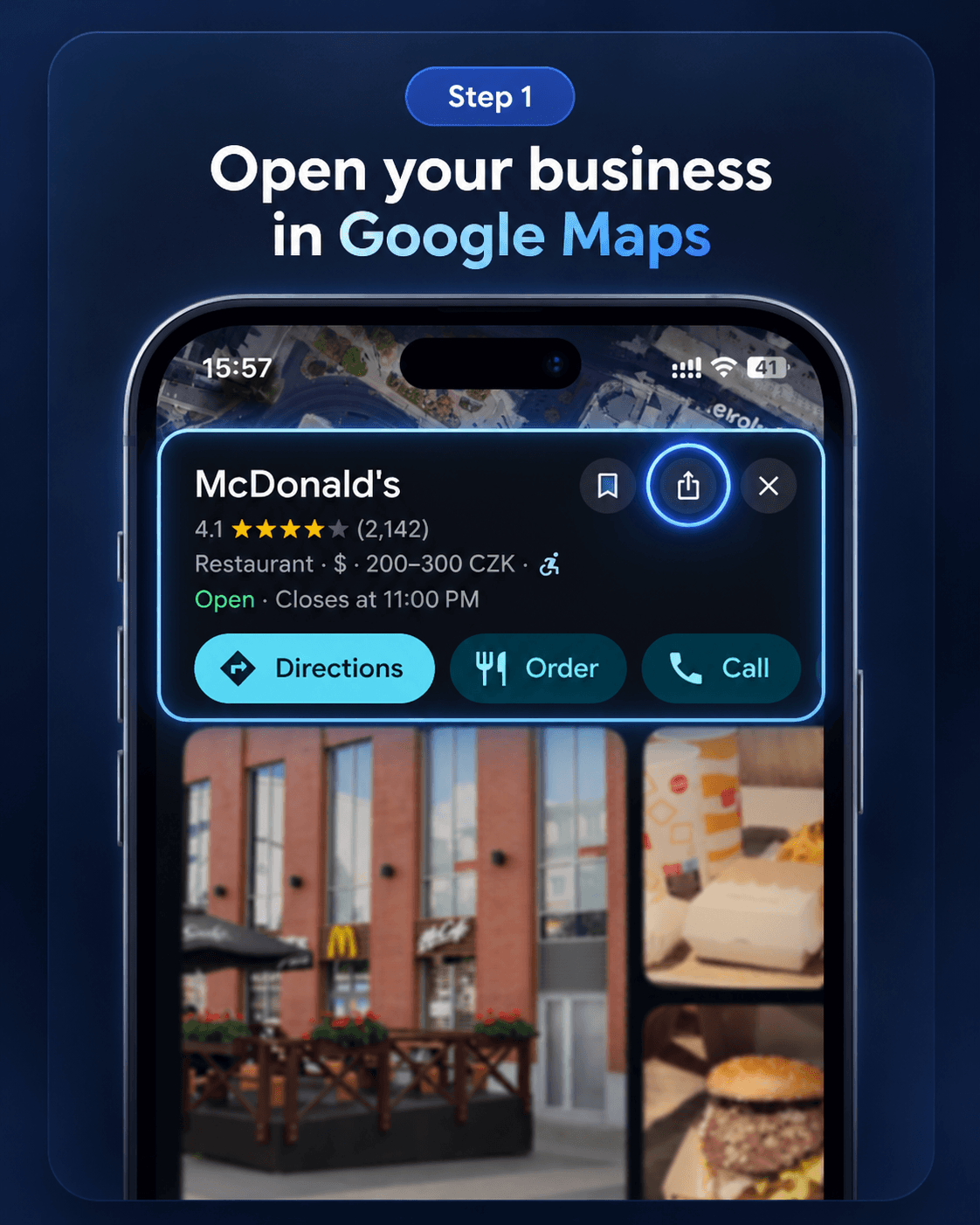
- 02
Tap Share
Open the Share menu on the business profile.
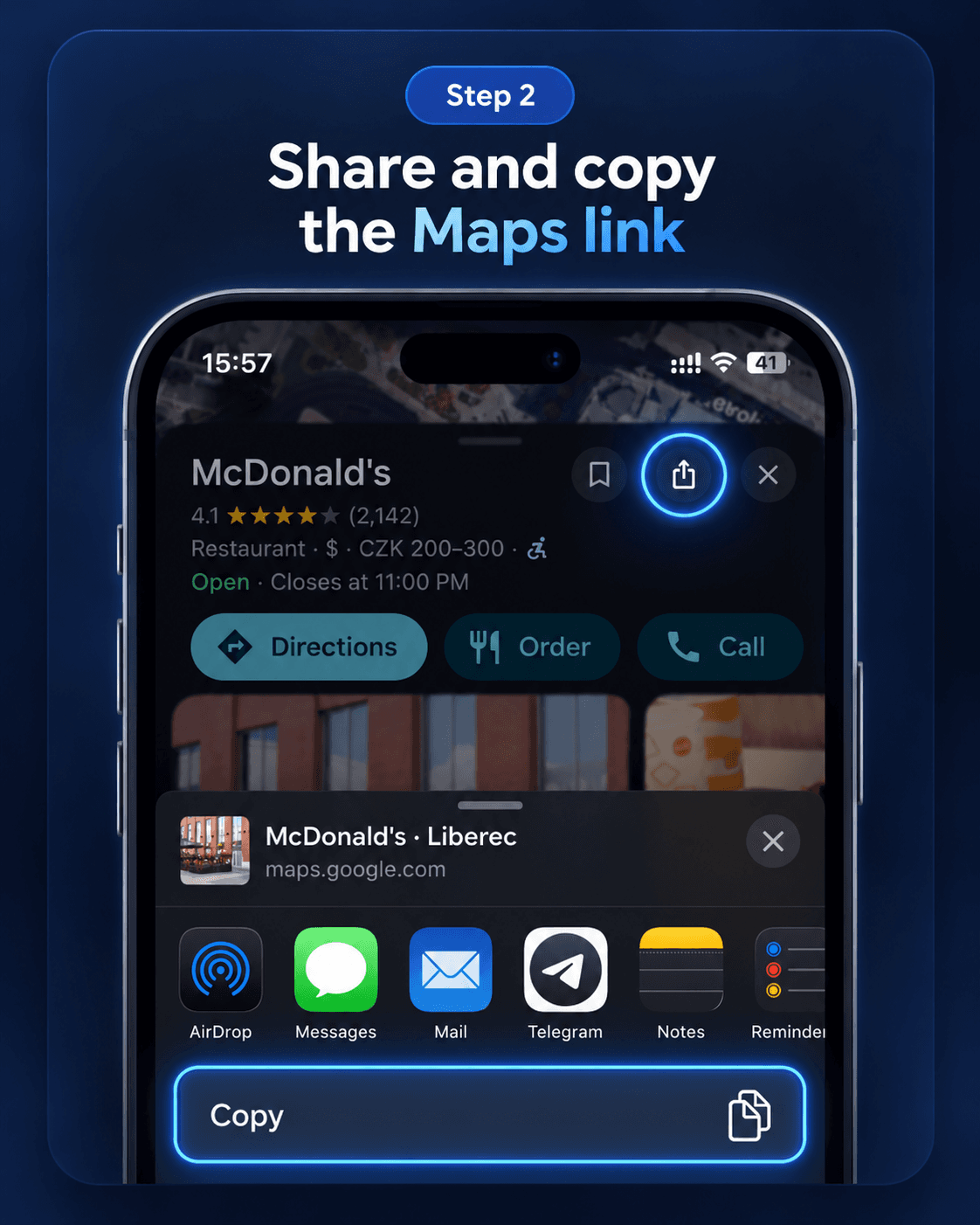
- 03
Copy the Maps link
Select Copy link. This is still the original link to the business profile.
- 04
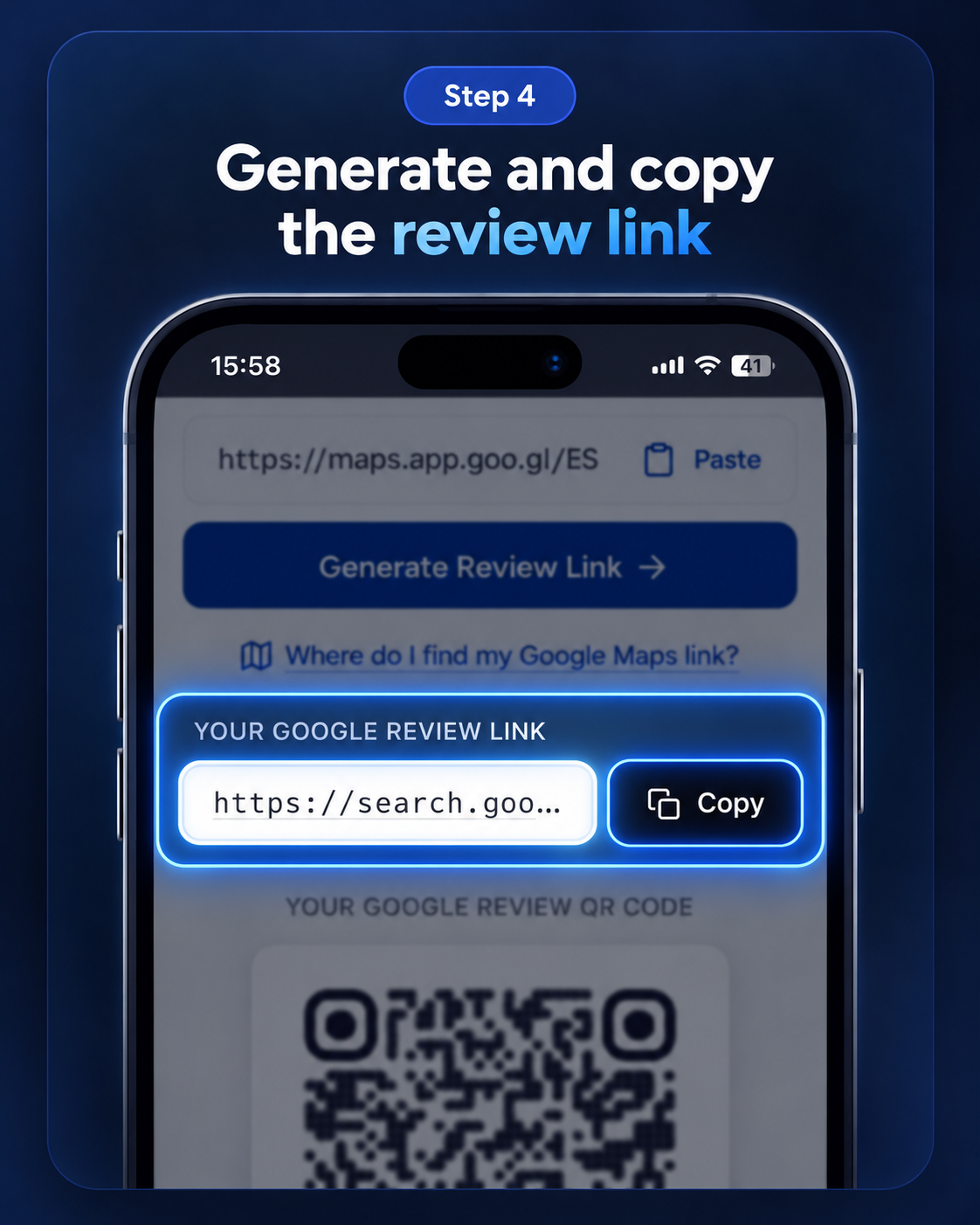
Open Productmate
Open the Free Google Review Link Generator to make a direct review link.
- 05
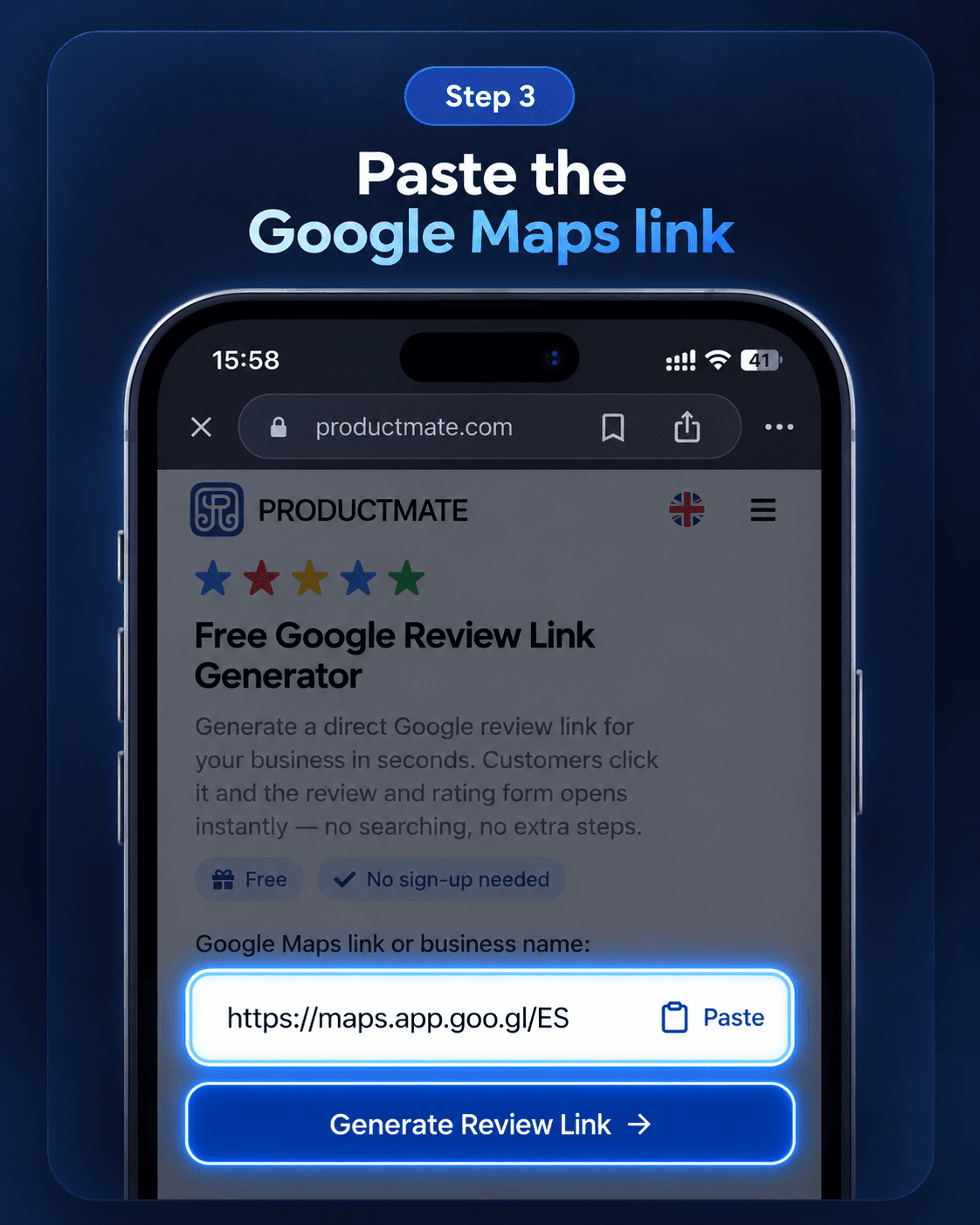
Paste the Maps link
Paste the original Google Maps link you just copied into the generator.
- 06
Generate a direct link
Select Generate Review Link and confirm the correct location name and address.
- 07
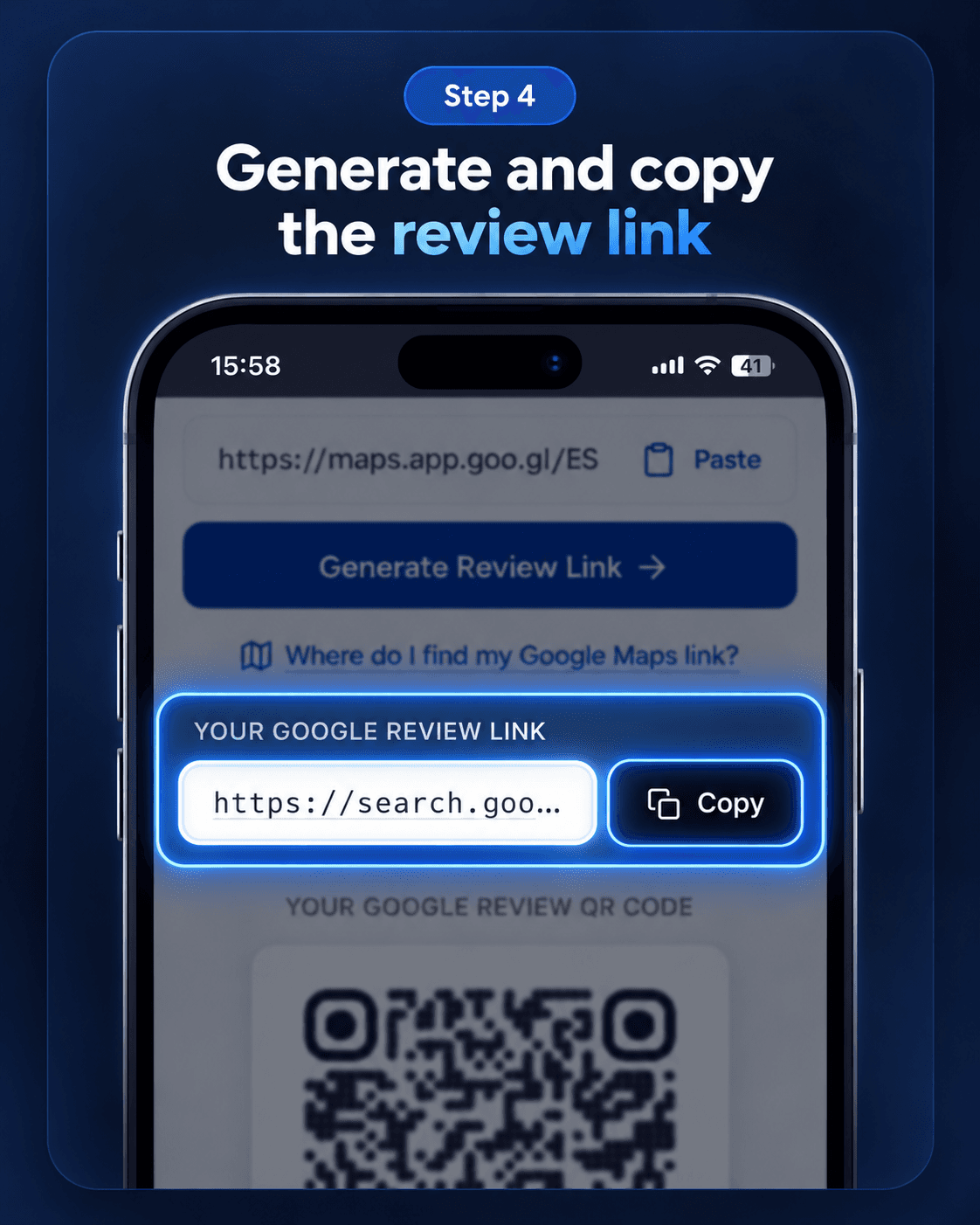
Copy the new link
Copy the generated review form link. This is the link to write to the card, not the original Maps link.
- 08
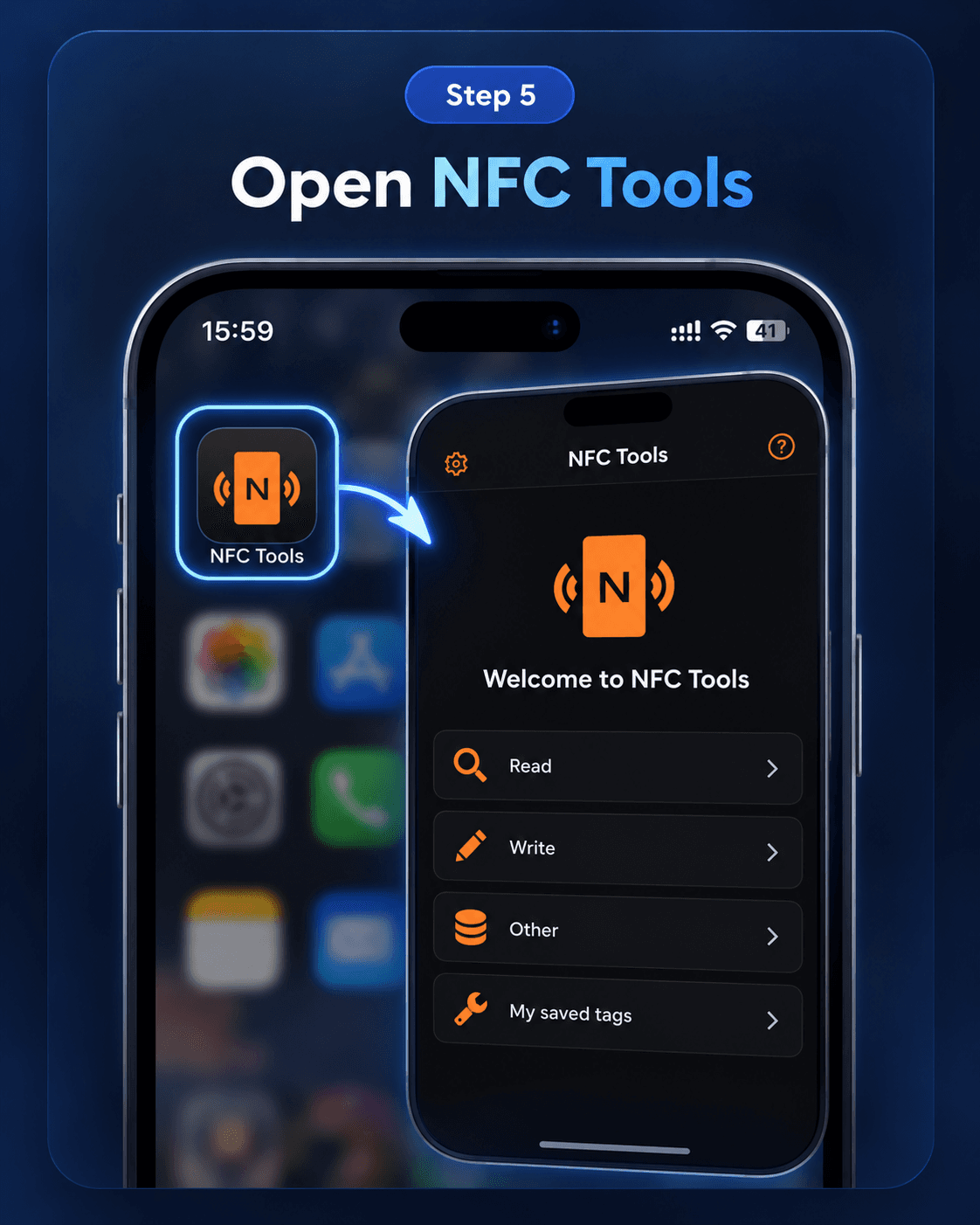
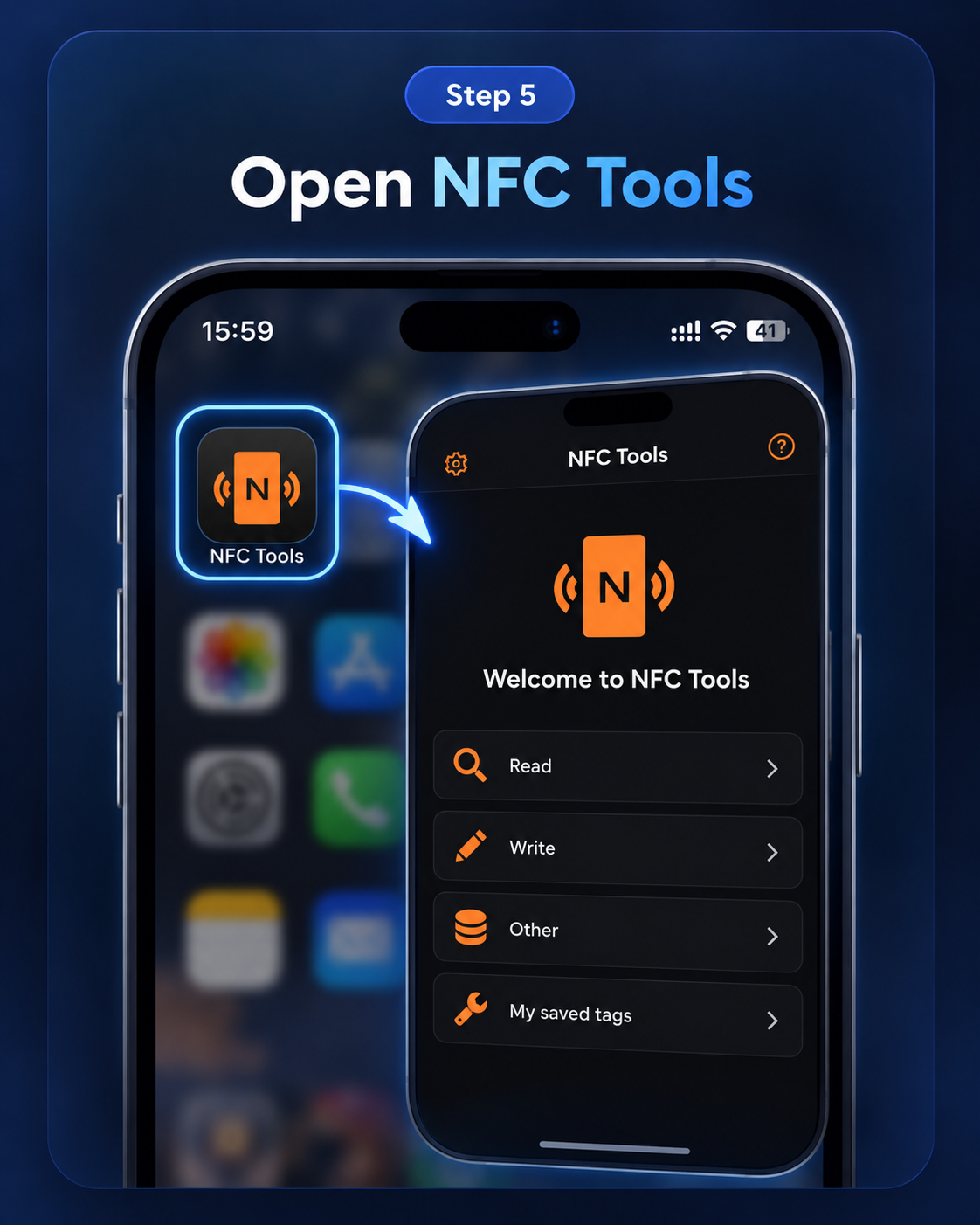
Open NFC Tools
Turn on NFC on your phone and open NFC Tools.
- 09
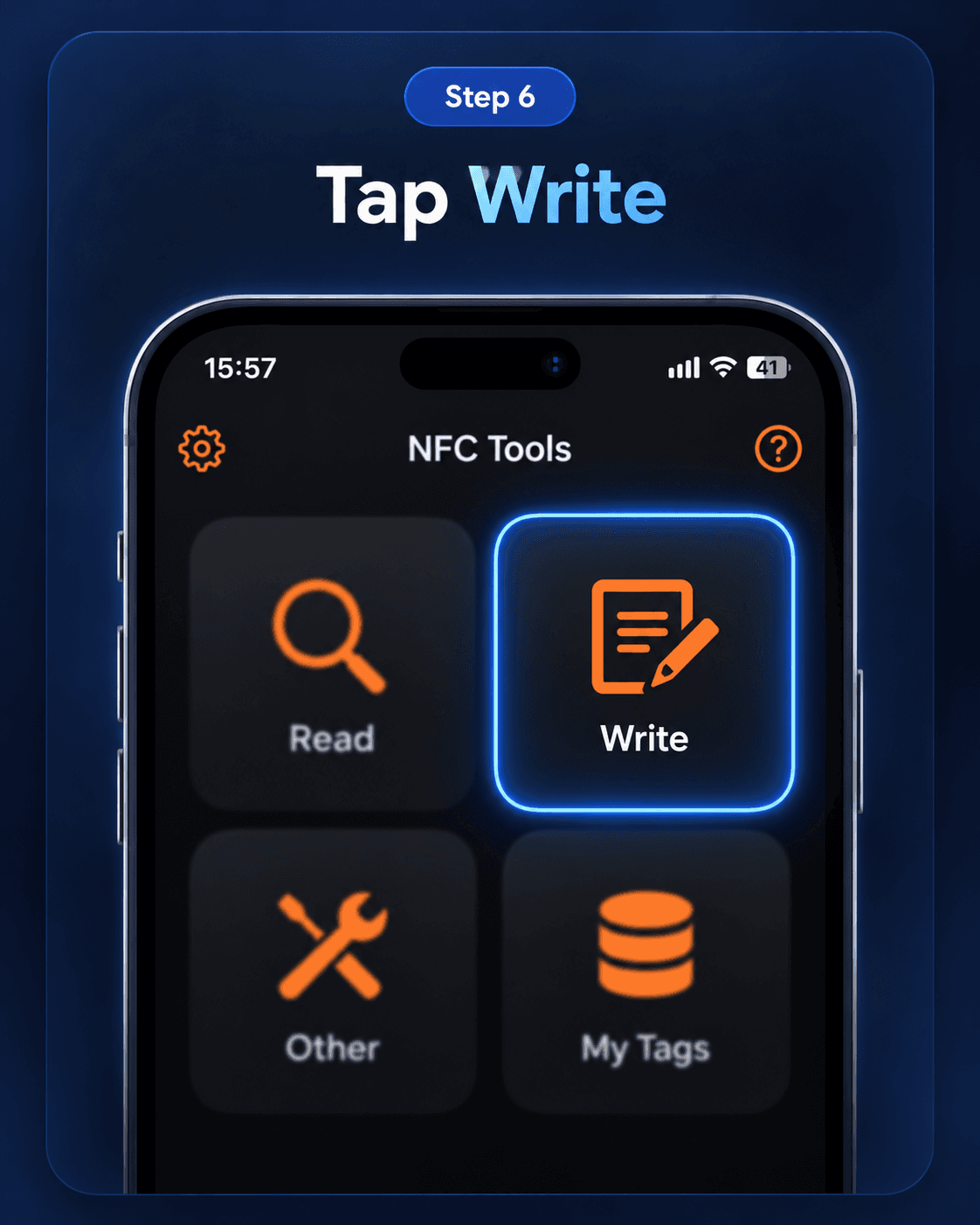
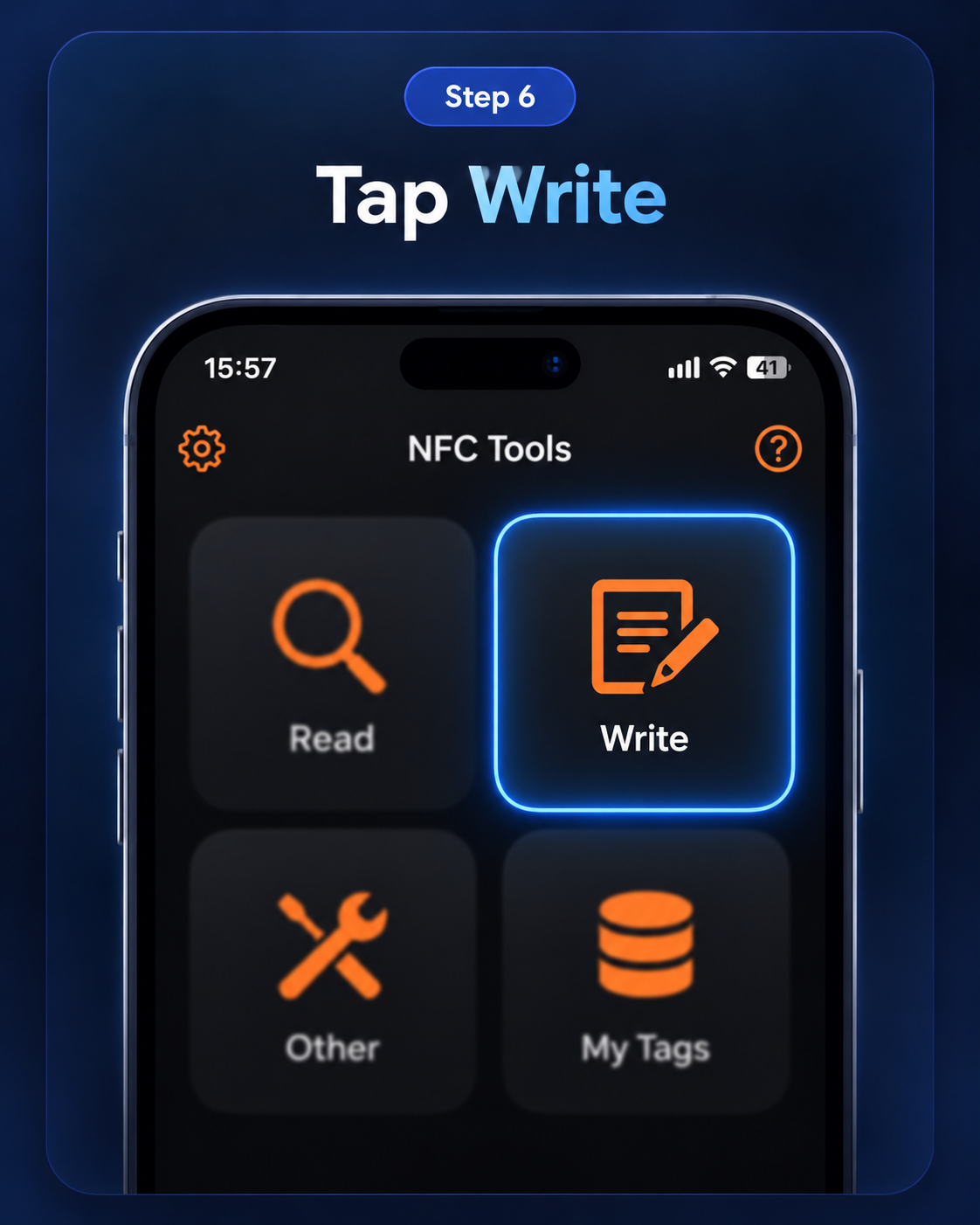
Select Write
Switch to the Write tab to prepare the card.
- 10
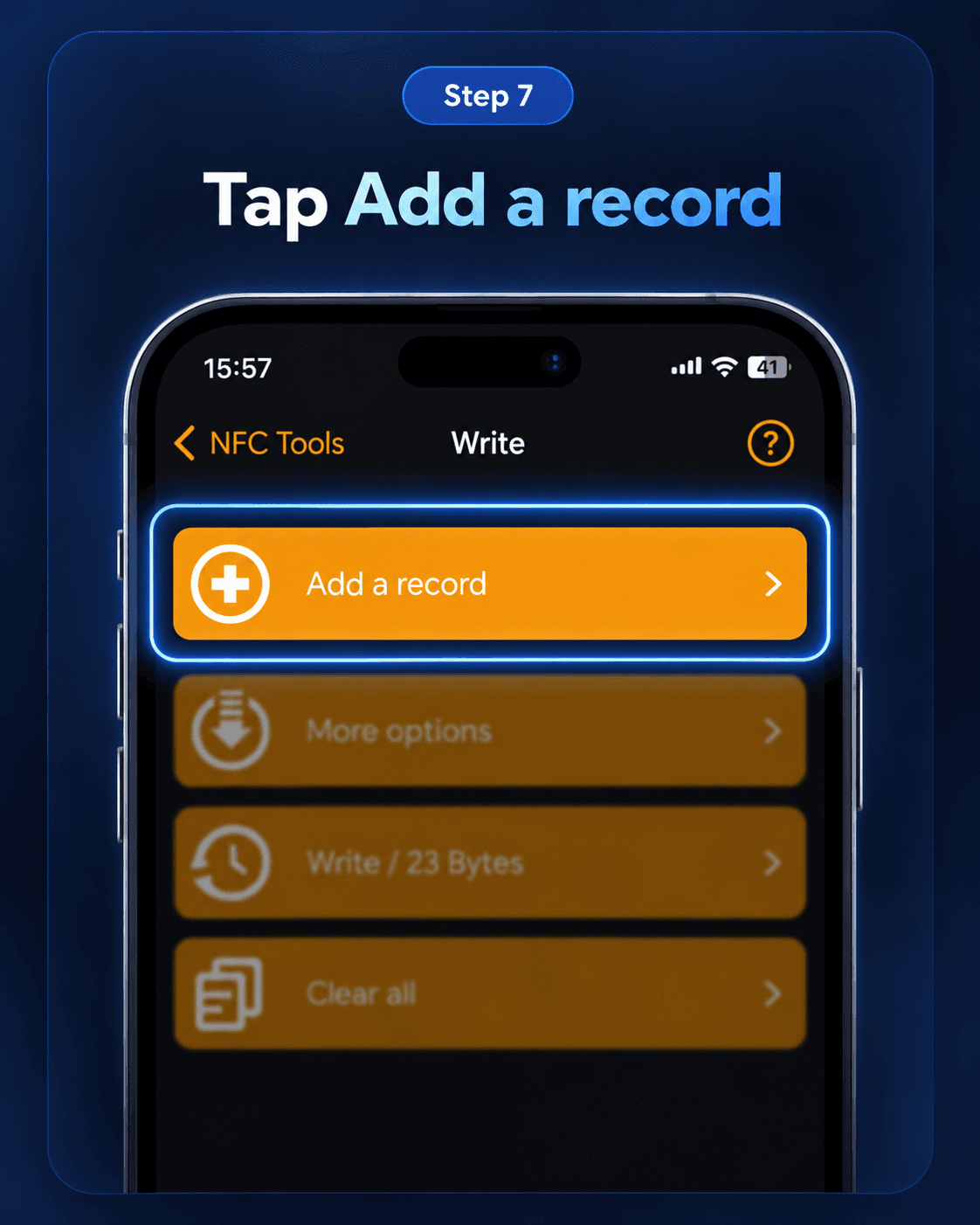
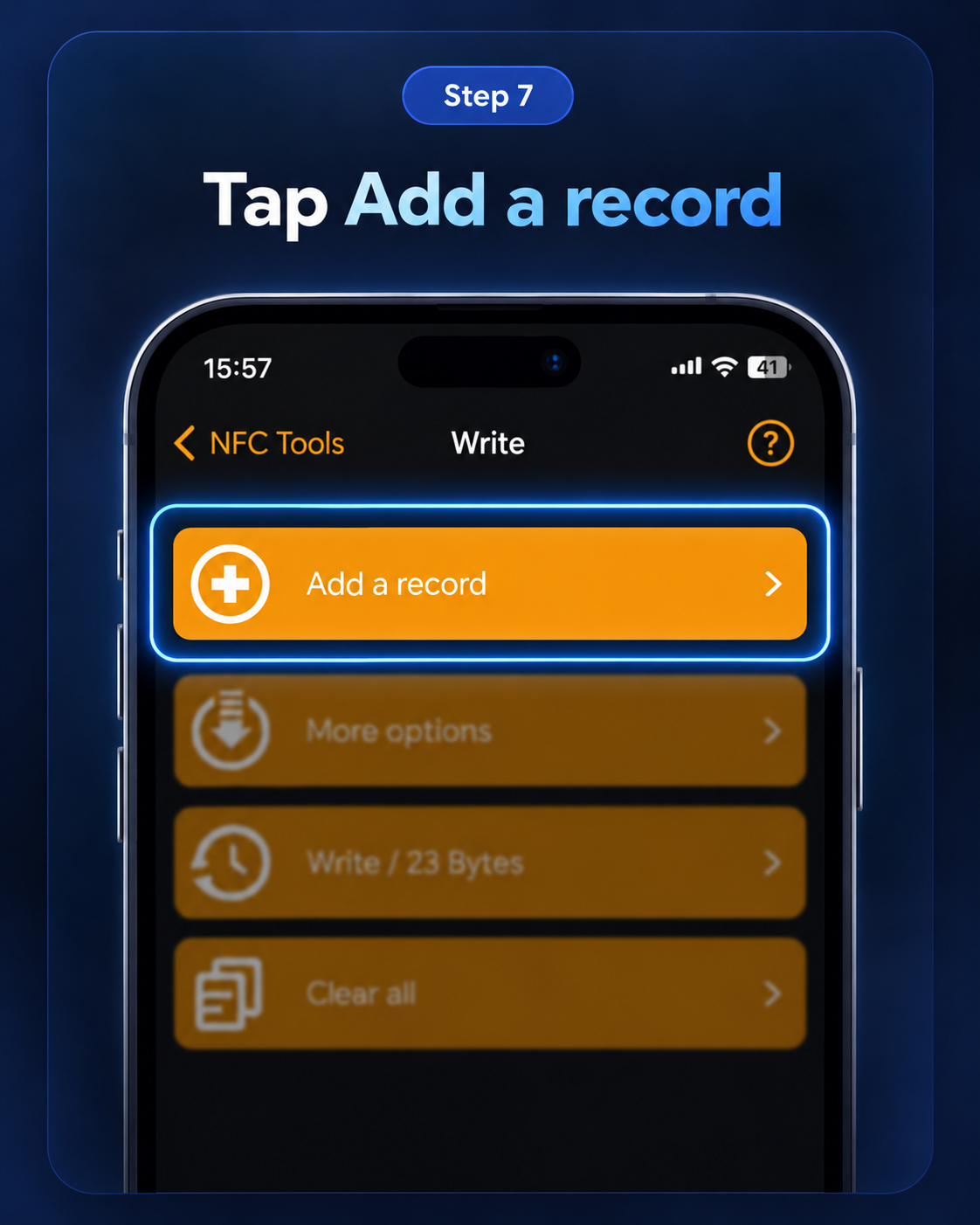
Add a record
Tap Add a record.
- 11
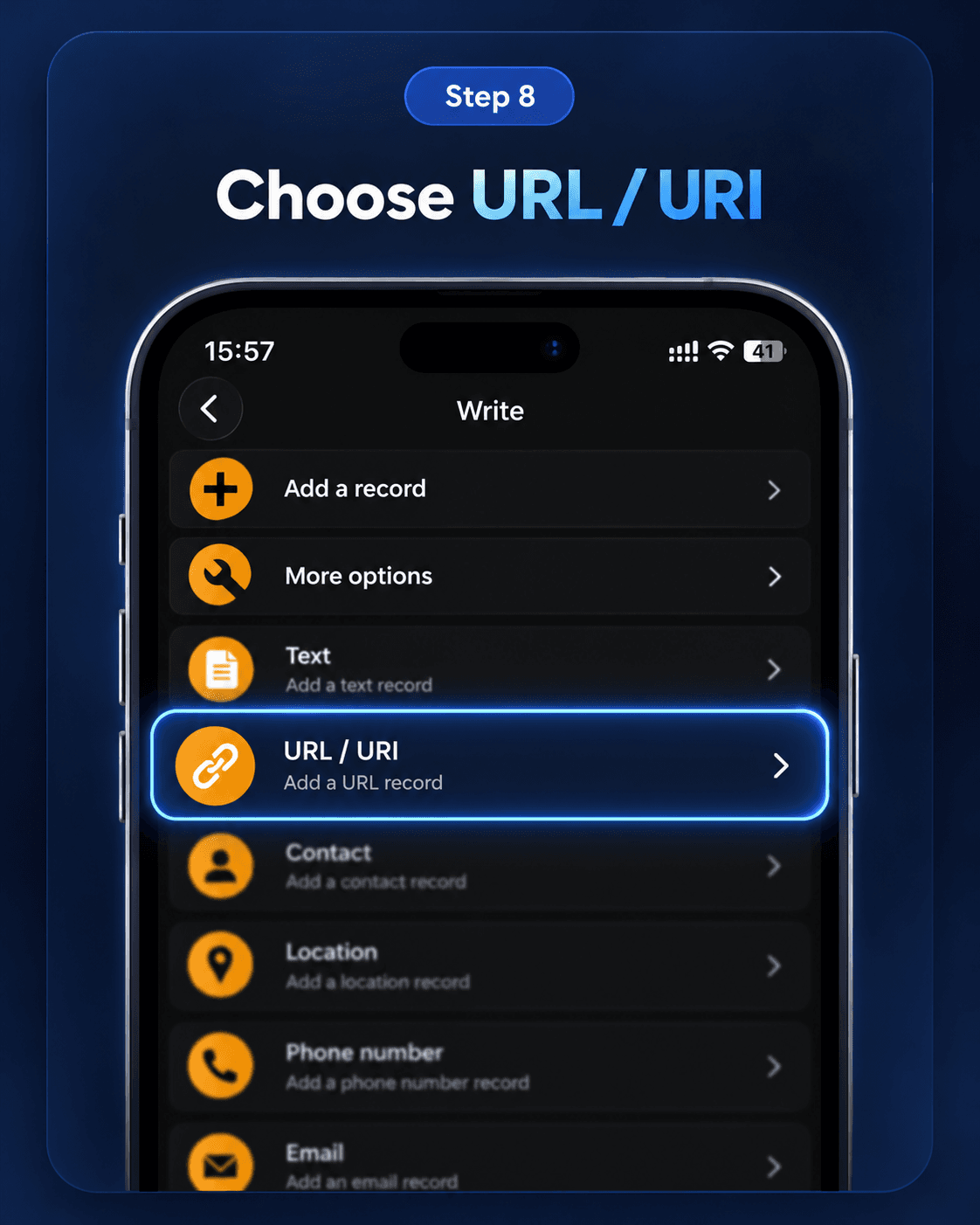
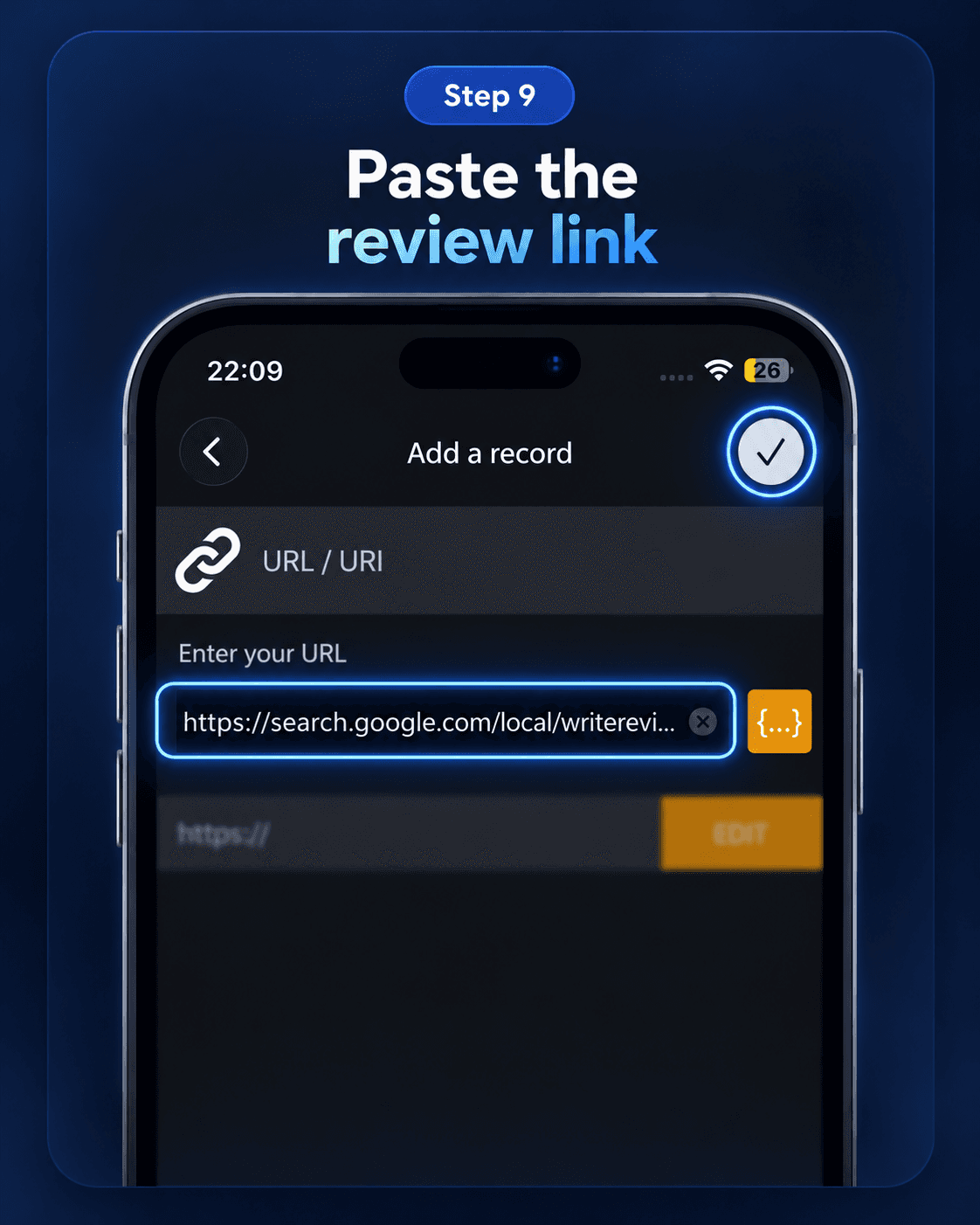
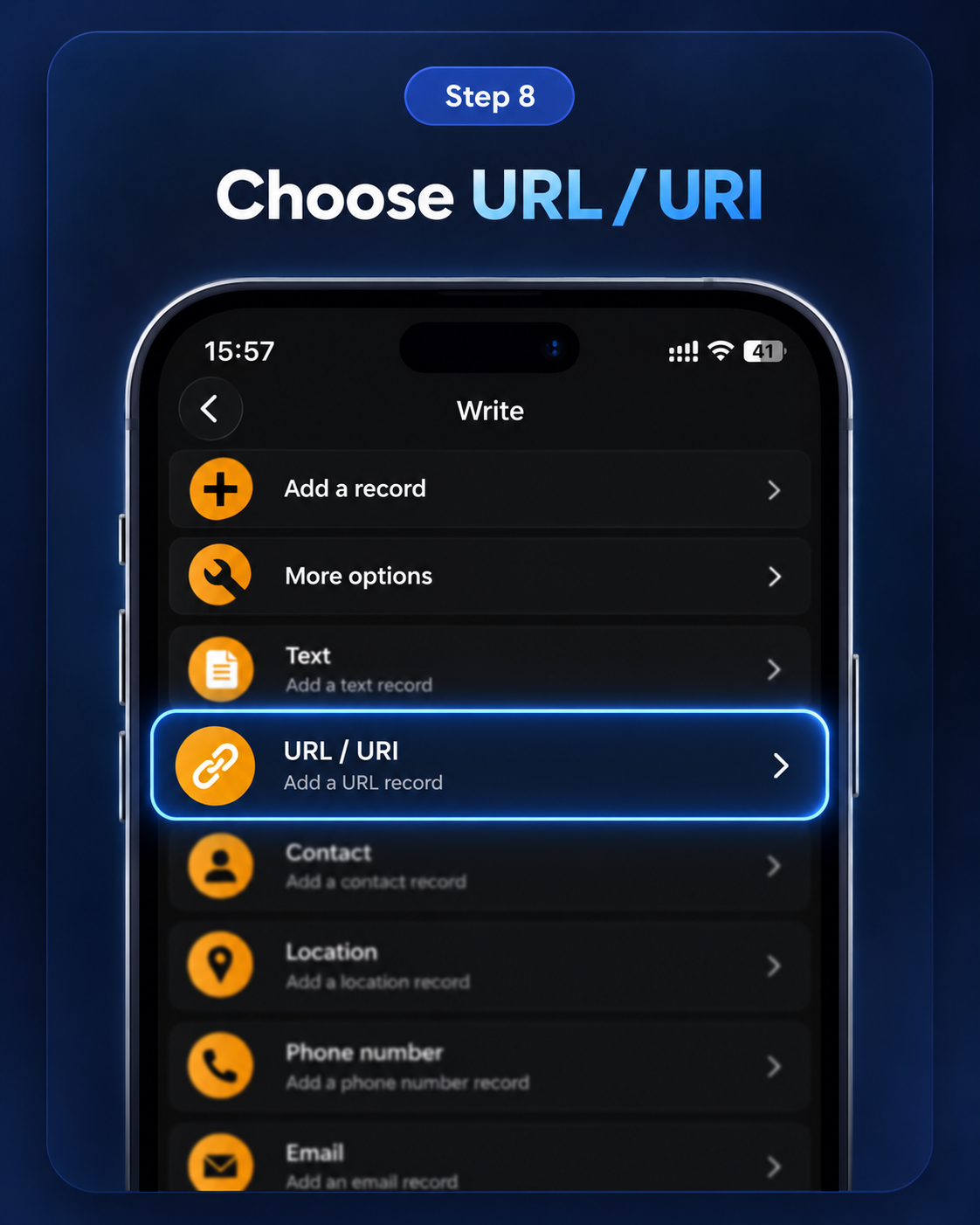
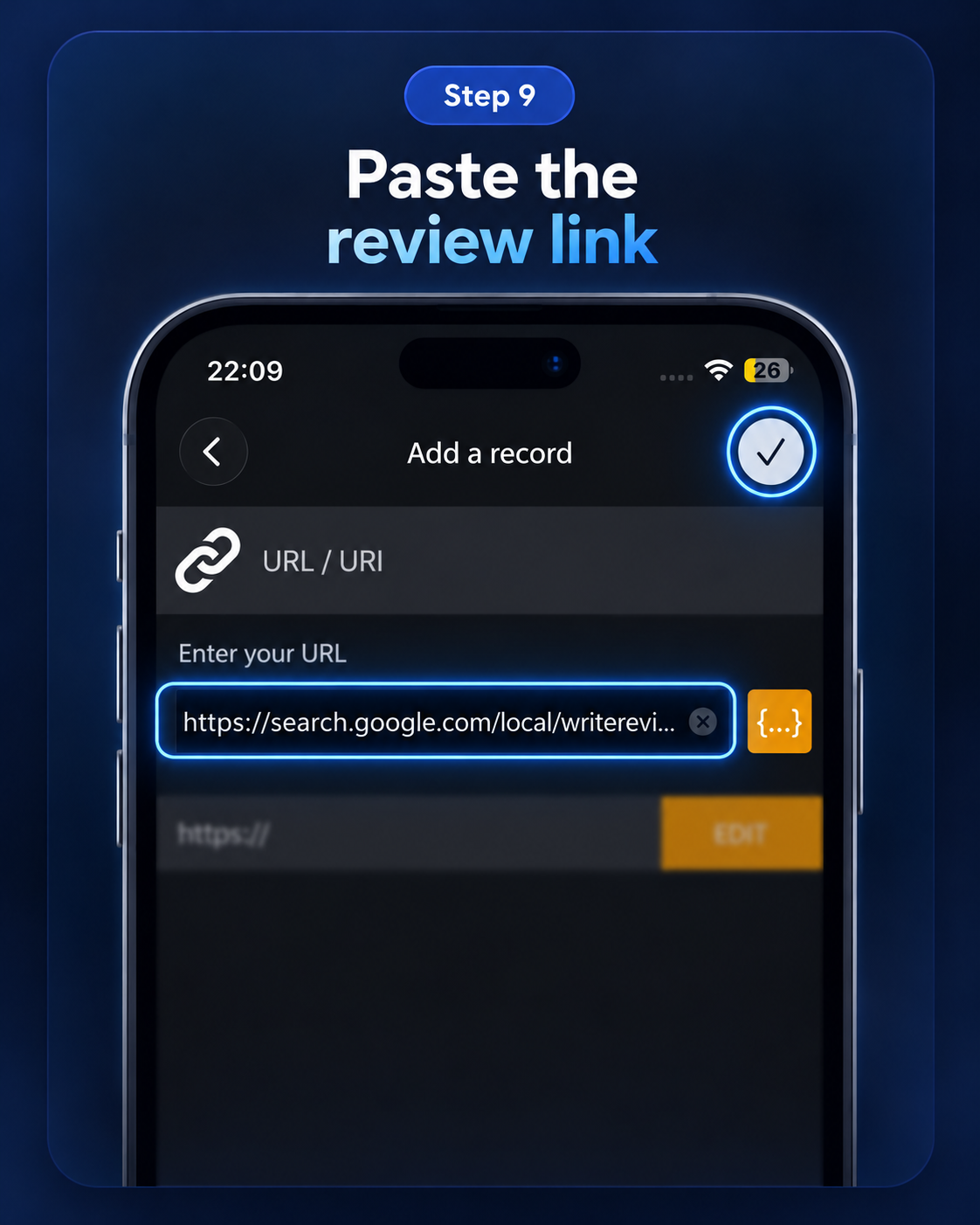
Choose URL / URI
Choose the URL / URI record type and paste the generated Productmate review link.
- 12
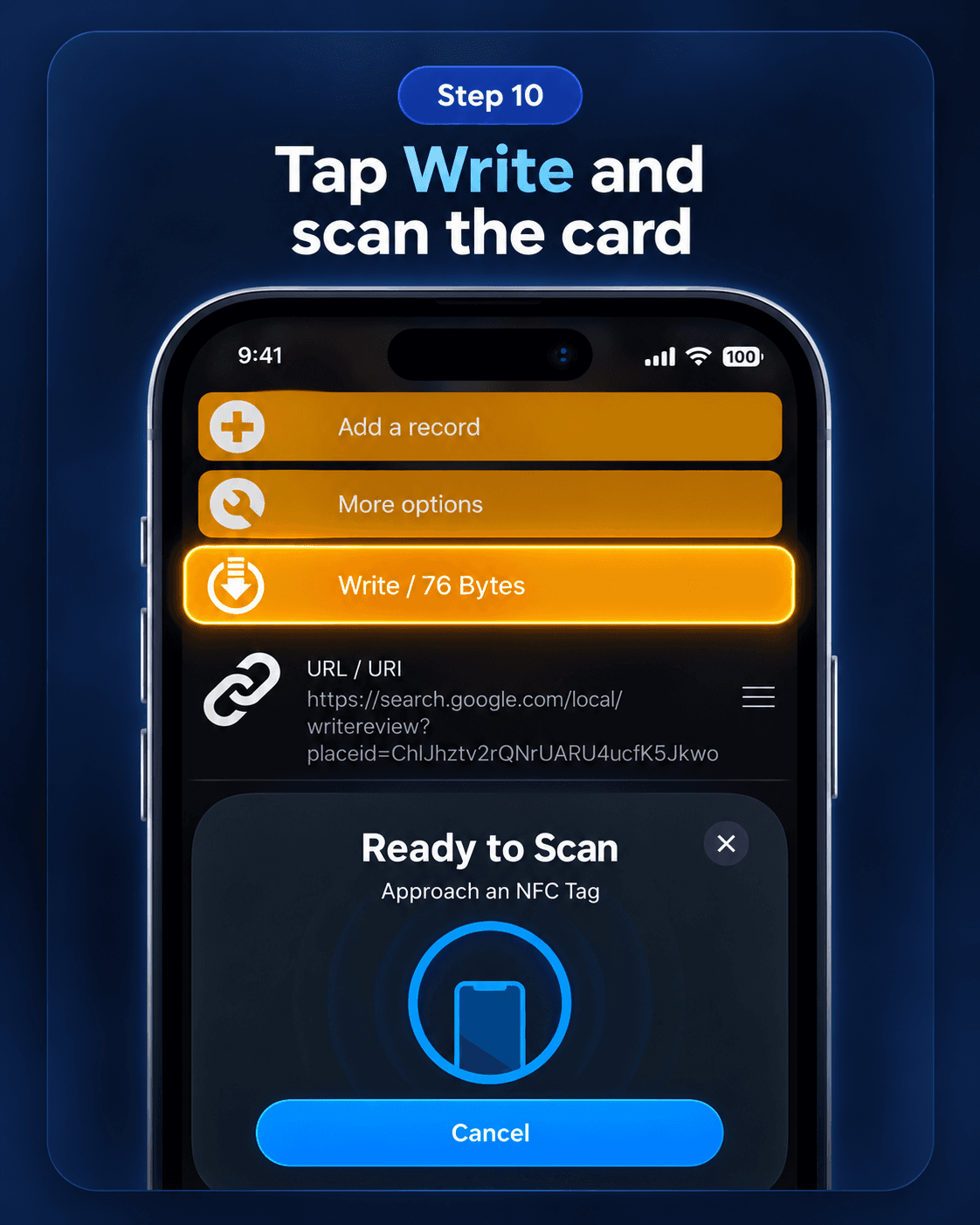
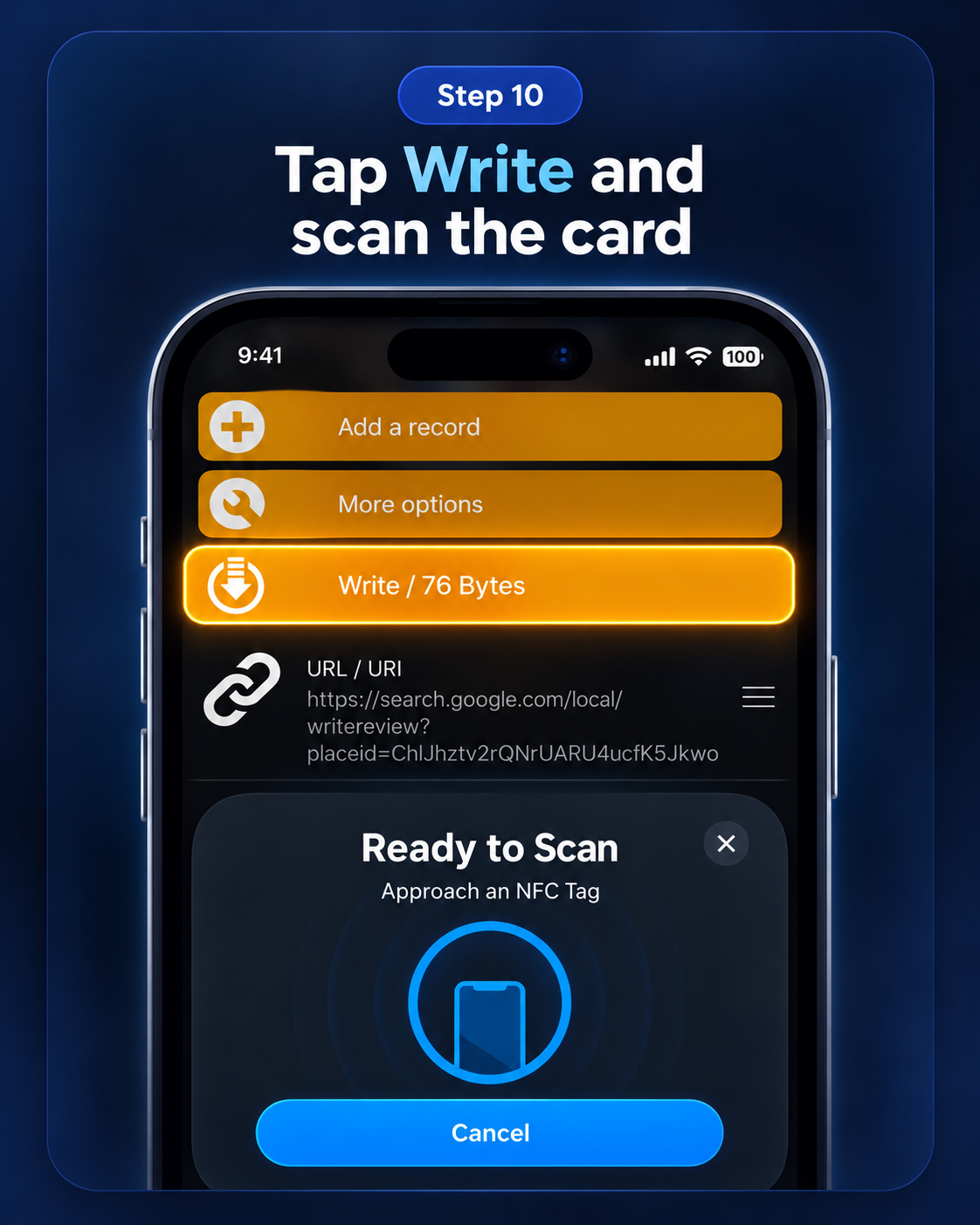
Write the card
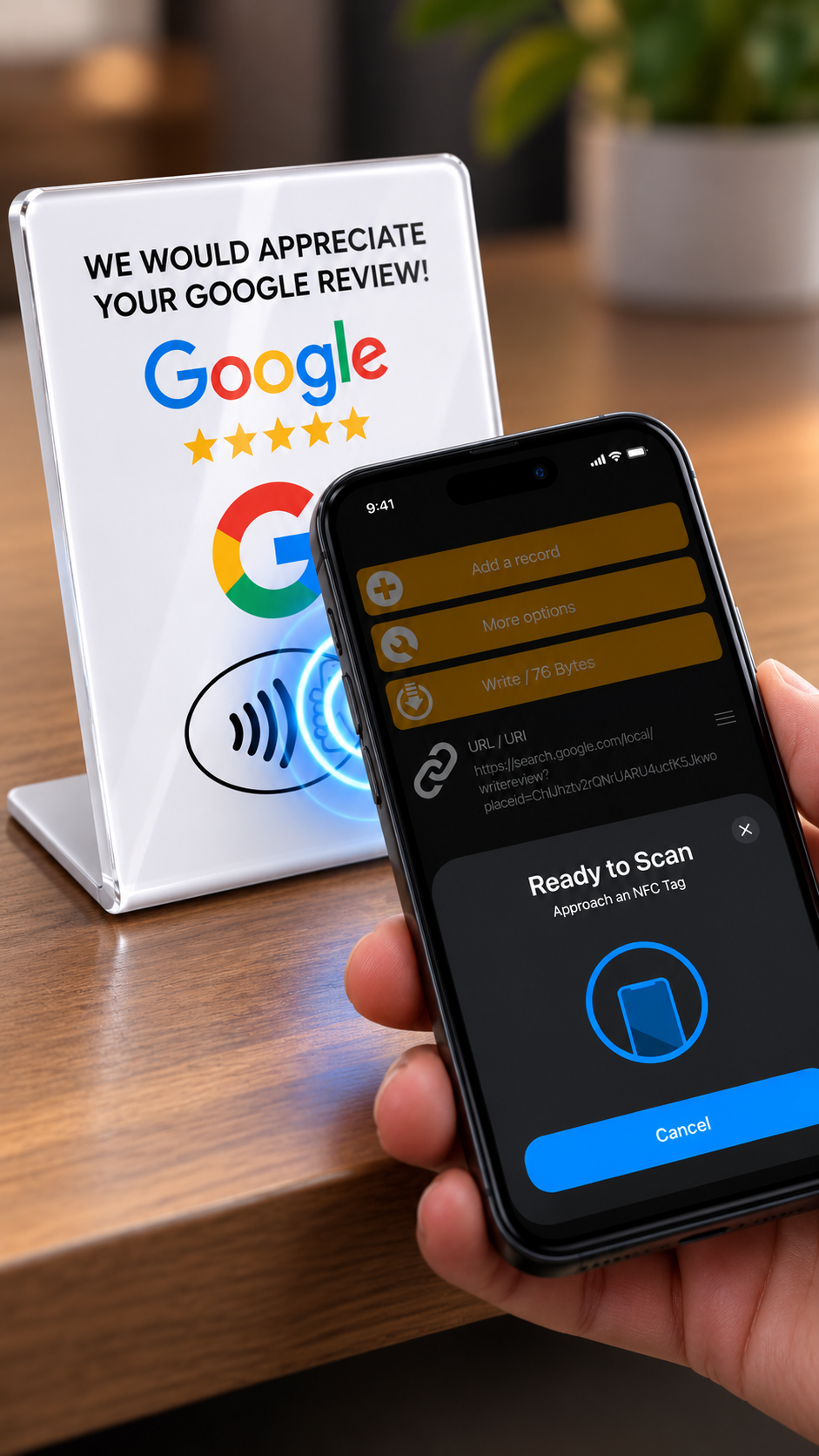
Check the URL, tap Write, then bring the phone to the card when Ready to Scan appears. Wait for confirmation.
- 13
Test the card
Tap with another compatible phone and check that it opens the right business's review form.
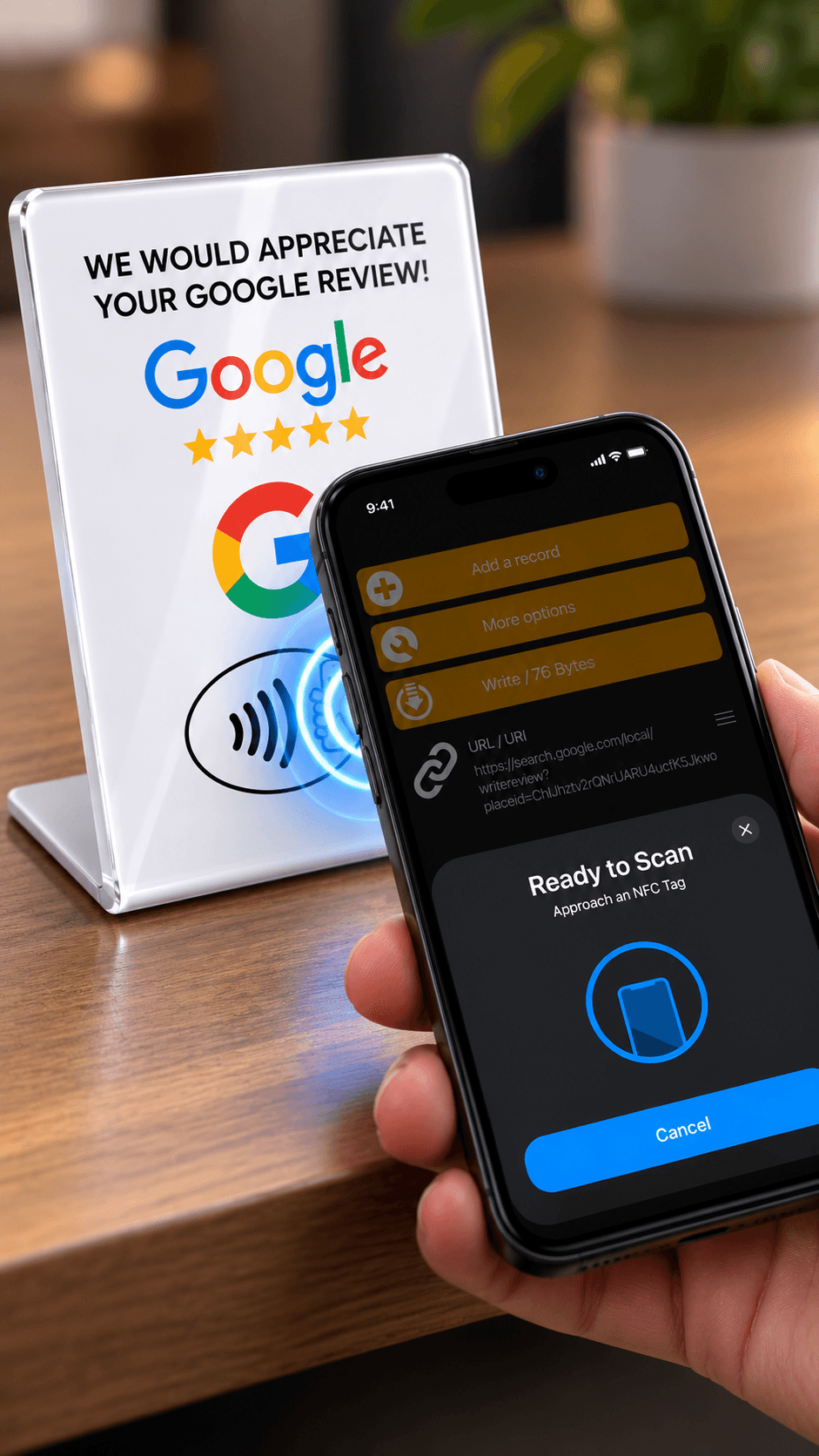
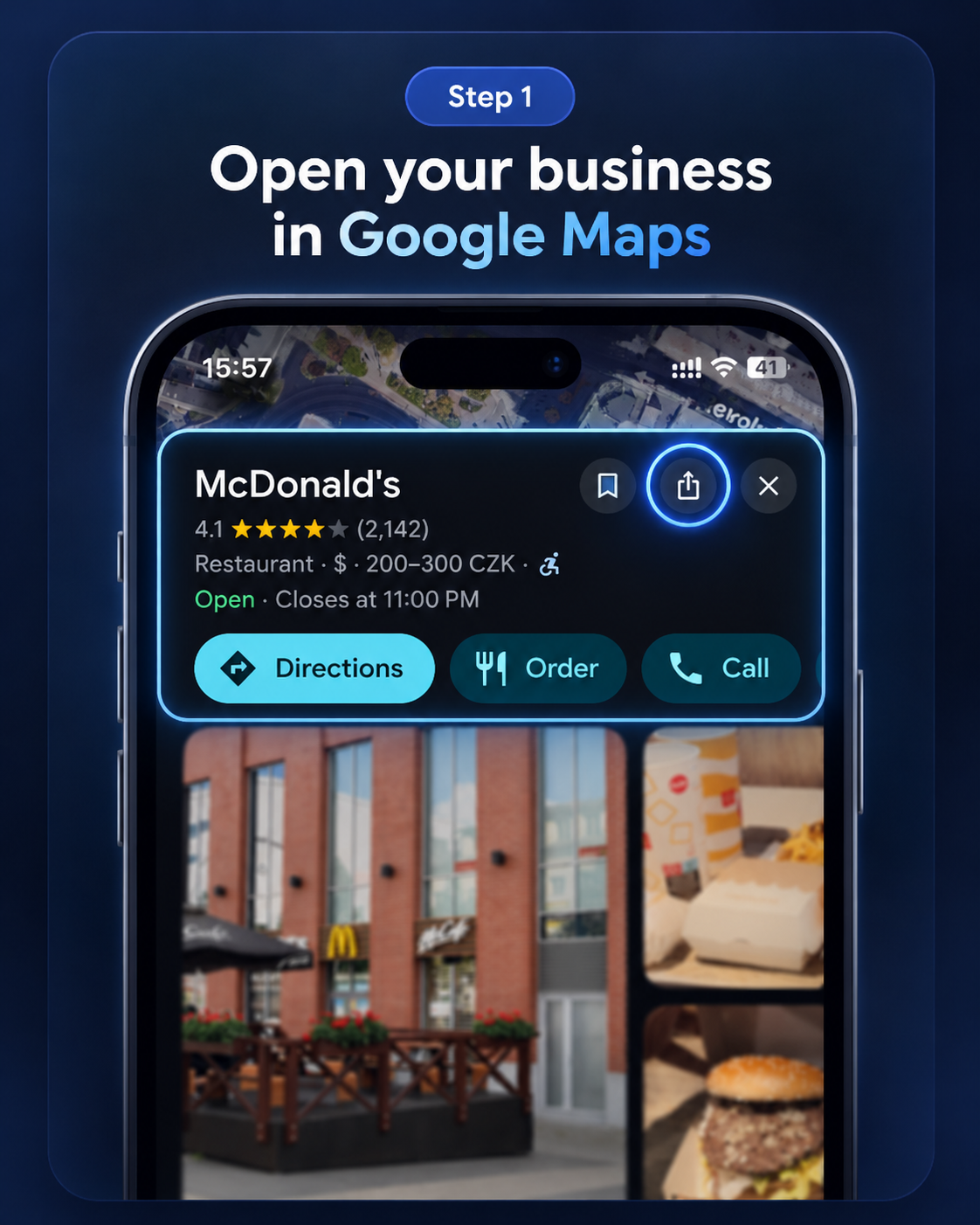
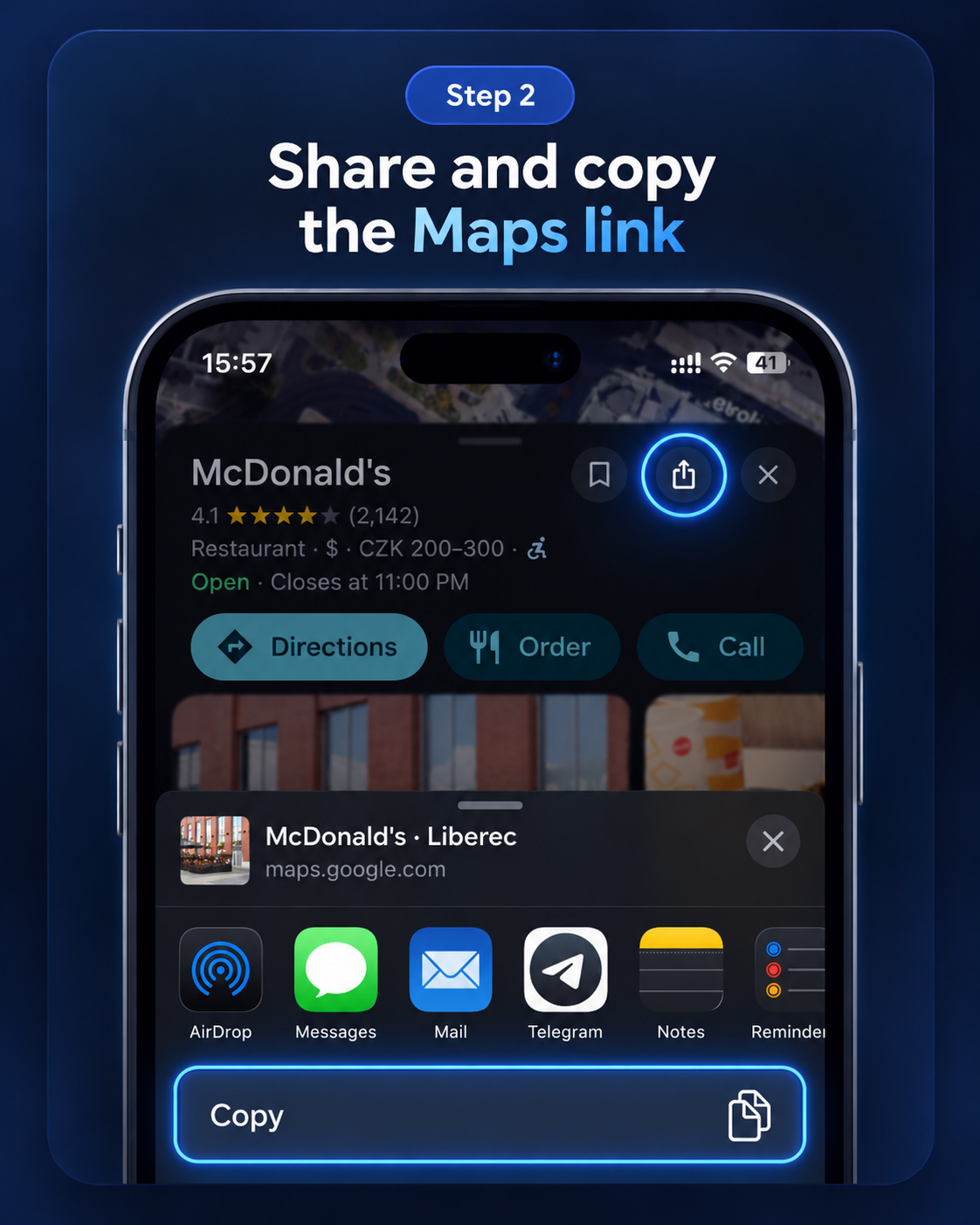
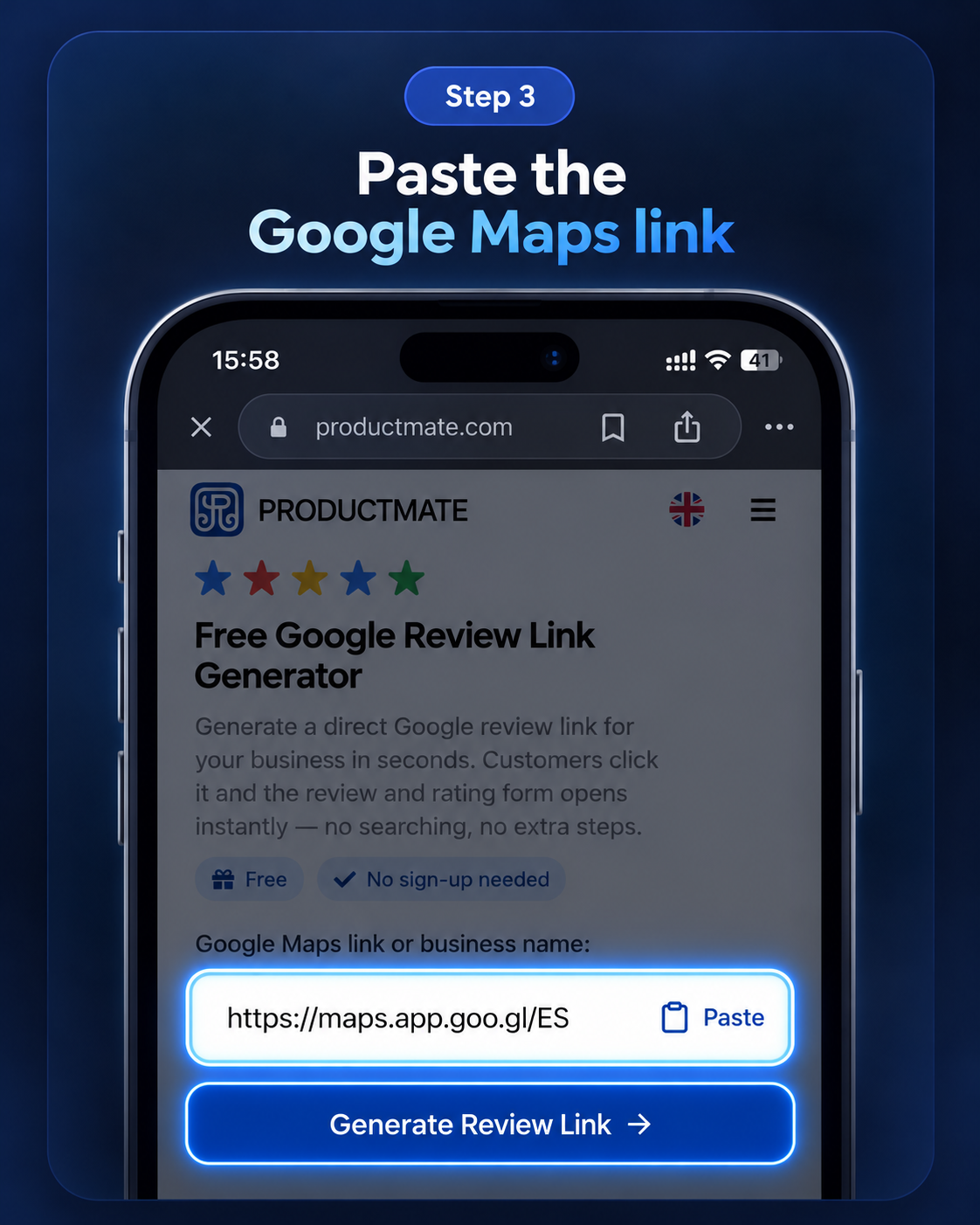
Third-party interfaces can change. English labels in the illustrations show an example interface.
READY
Your card is ready to share.
After setup, customers need no app: they tap a compatible NFC phone and open the system notification or link to the Google review form. Reviews are voluntary; nothing is posted automatically.
Once the test opens the correct review form, you can present the card to customers. Leaving a review and choosing a rating is always voluntary; nothing is posted automatically.
If something does not work
- No response? Check NFC support and settings, unlock the screen, and try another antenna position.
- Writing fails? Check chip compatibility and capacity, and whether the card is locked or already configured.
- Wrong business? Verify the exact location in Productmate, generate a fresh link, and rewrite the card if possible.